The dataset wasn't the problem. It almost never is. The real culprit is everything that happens around the dataset while you work with it, and once you understand that, a lot of confusing "not enough space" moments start to make sense.
The size of your file is only the starting point
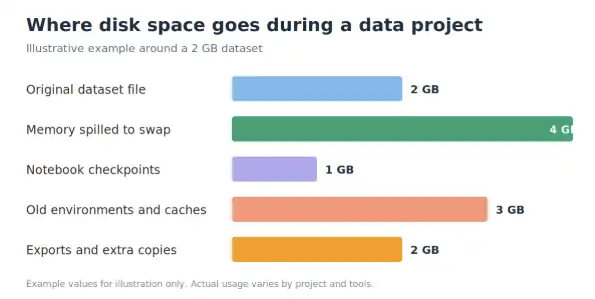
When you load a CSV into Python or R, you're rarely working with a single copy of that data. A pandas merge or filter often produces a brand new DataFrame instead of editing the old one in place. R can also copy an object when you modify it. Do a few of those in a row and your memory footprint can end up several times larger than the file you started with.
Here's where the disk comes in. When your Mac runs out of RAM, macOS doesn't just give up. It uses part of your startup disk as swap, a kind of overflow area for memory. So a memory problem quietly turns into a storage problem, and the space it eats isn't space you can see in your Documents folder.
Then there's the clutter that builds up around any analysis project:
- Jupyter creates checkpoint copies of your notebooks, and notebooks that save charts and large outputs can get surprisingly heavy.
- Every conda or virtual environment you've ever created is still sitting there, and a single environment with the usual scientific packages can take up a gigabyte or more.
- Package caches, old downloads, and exported files pile up in the background.
- And then there are the "just in case" files. You know the ones: survey_clean_v2_final_FINAL.csv.
It's just how data work tends to go. But it adds up much faster than most of us expect.
When the disk fills up, your results can be at risk
A full disk is more than an inconvenience. It can quietly affect the quality of your work.
Say your script is exporting a cleaned dataset and the disk fills halfway through. Most software will throw an error, but not every tool fails loudly, and a half-written file can still open without complaint. It looks fine. It just has fewer rows than it should. If you then run your analysis on that file, you're working with incomplete data and you may never know.
This is the same idea behind data integrity: data needs to be accurate, complete, and consistent, or everything built on top of it becomes unreliable. A truncated export breaks completeness without any visible warning.
After any big export or save, compare the row count against your source data. It takes a few seconds and catches problems that would otherwise surface weeks later, usually at the worst possible moment.
Big macOS updates run on the same hidden math
The same "bigger than it looks" problem shows up when you update your operating system.
Take macOS Golden Gate as an example. According to MacPaw's guide, the installer itself is around 18 GB, but you need at least 35 GB of free space to avoid problems. The extra room goes to temporary installation files, swap space, and on-device AI models. That's nearly double the size of the download, and it's the reason so many updates stall or fail even when people think they have plenty of room. The guide also points out that Golden Gate is Apple silicon only, so Intel Macs won't see the update at all.
If you do statistical work, you may already put off big updates for good reason. Nobody wants to find out their R or Python setup broke the night before a deadline. That caution makes sense. But when you do decide to update, being short on space shouldn't be what trips you up. If your Mac is tight on storage, MacPaw has put together a clear set of solutions for clearing space before you start.
Back up your project files and datasets before any major update, no matter how smooth it's supposed to go. It's a few minutes of effort against the risk of losing months of work.
A simple headroom habit
You don't need a complicated system. What helps most is thinking in terms of headroom, meaning free space beyond what your files strictly need.
As a rough rule of thumb, try to keep free space of at least two to three times the size of your largest working dataset before you start a heavy job. This isn't an official standard, just a practical buffer that tends to keep things from breaking. For major OS updates, go with the specific figure the update calls for, like the 35 GB above.
A few things make this easy to maintain:
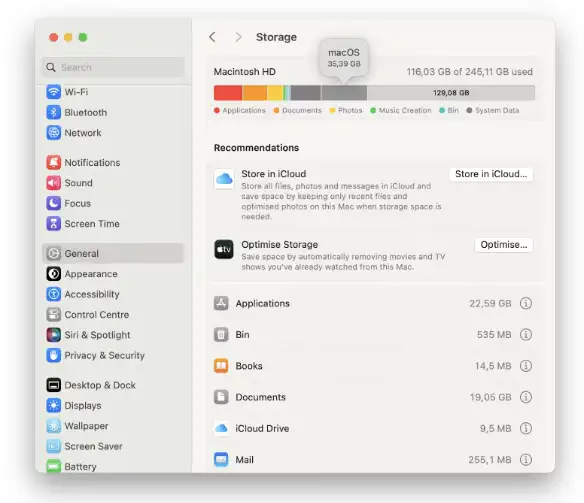
- Check your storage regularly. On a Mac, open System Settings, go to General, then Storage, and let the graph finish loading.
- Archive finished work. Move completed datasets and old project folders to an external drive or cloud storage instead of leaving everything on your main disk.
- Clean up your tools. Delete old notebook checkpoints and remove environments you no longer use.
- Keep raw data separate. Store your original files somewhere safe and read-only, and work on copies. It's easier to clear out working copies when you know the originals are protected.
If you're still deciding what to run your analysis in, our guides on statistics for Python and SPSS alternatives are a good place to start. Whichever tool you pick, the storage advice above applies to all of them.
- Check your storage regularly: System Settings → General → Storage
- Keep free space of at least 2–3× your largest working dataset before a heavy job
- Archive finished work to an external drive or cloud storage
- Delete old notebook checkpoints and unused environments
- Store raw data read-only and work on copies
- For major OS updates, follow the specific free-space figure required
The takeaway
The number you see on a file is almost never the number your Mac actually needs. Analysis creates copies, temporary files, and swap. Operating system updates need far more room than the installer suggests. In both cases, the people who run into trouble are the ones who planned for the visible size and forgot about the rest.
Leave yourself some headroom, check your outputs after big saves, and back up before big changes. It's not glamorous advice, but it's the kind that saves you an afternoon of re-running everything from scratch.