Key Takeaways
- Stop using a corrupted SD card immediately, and avoid formatting, deleting, or writing files.
- Recover important data with recovery software before running CHKDSK or other repair tools.
- Try low-risk fixes first, such as another reader/port, a new drive letter, or reinstalling the driver.
- Use CHKDSK only after recovery because it can make some damaged files harder to recover.
- Format the card only as a last resort, after saving your important files.
Part 1: How to Tell If an SD Card Is Corrupted
SD card corruption can show up in several ways:
- Card not detected: It may not appear in File Explorer or Disk Management.
- Format prompt: Windows says, "You need to format the disk before you can use it." This means it can't read the file system, but not necessarily that your data is gone.
- RAW, unallocated, empty, or wrong size: A 64 GB card showing only a few MB can indicate partition or file-system damage.
- Missing or broken files: Photos, videos, or documents may be incomplete or refuse to open.
- Errors or disconnects: Transfers may become extremely slow, fail, or repeatedly disconnect.
What Causes SD Card Corruption?
Several things can corrupt an SD card. The most frequent is removing it while the camera or computer is still writing, leaving the file system only partially updated. Other causes include:
- Interrupted transfers
- File-system corruption or malware
- Faulty card readers
- Worn-out flash memory
- Physical damage from bending, water, or heat
The cause determines the fix. You can replace a bad card reader, but you should replace a worn-out or physically damaged card rather than repair it.
Part 2: Recover Data Before Repairing the SD Card
Every repair that follows, including CHKDSK, and formatting, writes to the card. That's why SD card recovery comes first. Once you copy your files somewhere safe, you can try repairs without worrying about what they cost you. Here's how to recover the files from the corrupted SD card:
Method 1: Recover Files with 4DDiG Data Recovery
4DDiG Data Recovery can recover files from formatted, RAW, corrupted, or inaccessible memory cards. It scans in read-only mode, so it doesn't write to the damaged card. Here's what 4DDiG Data Recovery offers:
Benefits of 4DDiG Data Recovery:
- Supports SD, microSD, CF, MMC, miniSD, SmartMedia, and xD cards.
- Compatible with 2,000+ file types, including CR2, NEF, ARW, DNG, and HEIC.
- Can resume previous scans and offers AI repair for damaged photos and videos.
- Can scan and preview for free, with the free version allowing up to 2 GB of recovery.
Step-By-Step Guide to Use 4DDiG Data Recovery:
Here's how to fix a corrupted SD card with 4DDiG Data Recovery:
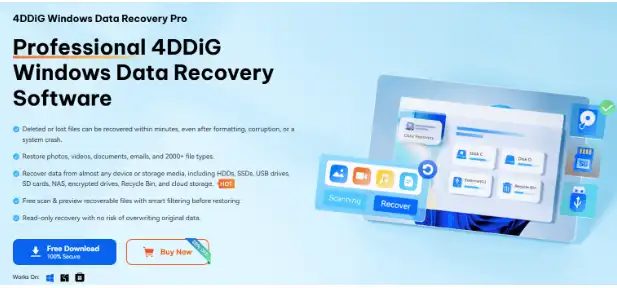
Step 1: Install and execute 4DDiG Data Recovery:
Connect the SD card to your computer. Install and execute 4DDiG Data Recovery on the same PC.
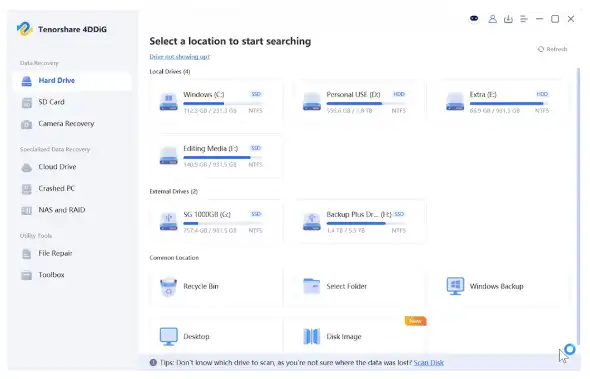
Step 2: Choose the SD Card:
Select the card. If it's RAW or unnamed, identify it by capacity. Pick the file types to scan, and confirm. The tool will search for deleted, formatted, RAW, or inaccessible files. You can pause and resume the scan as needed.
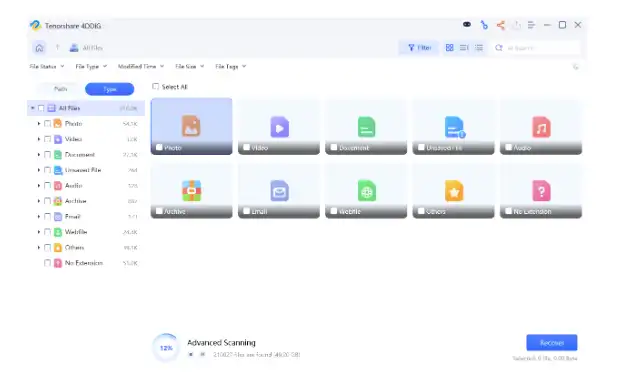
Step 3: Preview and save the results:
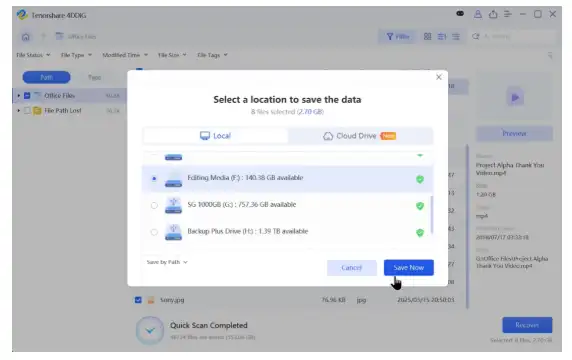
Filter the results by file type, tags, and keywords before recovery. Retrieve the files to another drive. Never save recovered files back to the damaged card, as this can overwrite data.
Part 3: How to Repair a Corrupted SD Card Safely
Once your files are safe, go through these SD card recovery fixes in order, from the least risky to the most. So, you only escalate if the gentler option fails:
Fix 1: Test Another Reader, USB Port, or Computer
Before blaming the SD card, rule out the connection. Try another USB port, card reader, or computer. For full-size SD cards, check that the lock switch isn't enabled. If the card works elsewhere, the reader or computer is likely the problem, not the card.
Fix 2: Assign a New Drive Letter
Sometimes an SD card's drive letter conflicts with another drive's letter on Windows, or the card hasn't been assigned a drive letter yet. That's why it doesn't appear in File Explorer, and you assume it's corrupted. Assign a new drive letter to the card. Here's how:
- Right-click the "Start" menu. Choose "Disk Management." Find the SD card and right-click its partition.
- Select "Change Drive Letter and Paths." Tap "Add/Change," then choose an unused letter.
- Click "OK" and check "File Explorer."
If the card shows as RAW or Unallocated, assigning a letter won't help. Move on to the recovery steps.
Fix 3: Update or Reinstall the SD Card Driver
A faulty or outdated SD card driver can stop Windows from reading the card properly. So, update or reinstall it:
- Right-click the "Start" menu. Open "Device Manager" and expand "Disk drives" (and "Universal Serial Bus controllers" if you're using a USB reader).
- Right-click your SD card, and choose "Update driver," then "Search automatically for drivers."
- If that doesn't help, choose "Uninstall device," unplug the reader, wait a few seconds, and plug it back in. Windows reinstalls the driver on its own.
Fix 4: Show Hidden Files
Sometimes the files are still there but hidden on an SD card, usually after a virus or an interrupted transfer changed their attributes. You can unhide them:
In "File Explorer," open the "View" menu. Head to "Show," and turn on "Hidden items." If the folders reappear, copy them off the card right away.
If they're still missing, open "Command Prompt" and type:
attrib -h -r -s /s /d X:\*.*
This clears the hidden, read-only, and system attributes on everything on the card.
Fix 5: Run Windows Error Checking or CHKDSK
Only use these repairs after recovering your important files. CHKDSK changes the file system and may discard damaged records, making some files harder to recover.
Open "Command Prompt" and type:
chkdsk X: /f
Replace X with your SD card's drive letter. The /f switch fixes file-system errors, and /r checks for bad sectors. If the card is RAW, CHKDSK won't run. Recover your data first, then consider formatting.
Fix 6: Format the SD Card as a Last Resort
When SD card recovery and repairs fail, formatting rebuilds the file system from scratch. Only format after recovering your important files. Here's how to fix a corrupted SD card by formatting:
- Open "Disk Management." Find your SD card by checking its capacity.
- Right-click its partition. Choose "Format."
- Pick the format based on the card and device:
- FAT32: Best for SDHC cards up to 32 GB and older cameras or dash cams.
- exFAT: Best for SDXC cards over 32 GB and large files such as 4K video.
Leave "Allocation unit size" as "Default" and click "OK." Confirm the warning and wait for formatting to finish.
After formatting the card on your computer, format it again in the camera or device that will use it for the most compatible setup.
Quick Comparison: Which Fix Carries What Risk?
Here's a brief comparison of all the above fixes. So, you can understand which carries the most risk:
| Method | Best For | Data Risk |
|---|---|---|
| Different reader or port | Detection problems | Low |
| New drive letter or driver | Windows recognition errors | Low |
| CHKDSK or Error Checking | File system errors | Medium |
| Formatting | RAW or severely corrupted cards | High |
Part 4: How to Prevent Future SD Card Corruption
You can prevent most future SD corruption with a few preventive measures. Here's how:
- Safely eject the card instead of pulling it out while Windows may still be writing.
- Never remove it during recording or transfers.
- Back up files regularly. Treat SD cards as temporary storage, not archives.
- Replace cards with repeated errors. Flash memory wears out over time.
- Use genuine cards and dependable SD card readers. Counterfeit cards and poor-quality readers can cause corruption.
Final Words
When an SD card is corrupted, the order for SD card recovery matters. Formatting or running CHKDSK first can make recovery harder. Thus, retrieve your files first, then repair the card. 4DDiG Data Recovery can scan formatted, RAW, and corrupted cards without writing to them and lets you preview files before restoration. Once your files are safe, go through the fixes, from checking the reader to formatting as a last resort.
When an SD card is corrupted, the order for SD card recovery matters. Recover your files first, then repair the card. Go through the fixes from checking the reader to formatting as a last resort.
FAQs
Q1. Can I recover data from a corrupted SD card without formatting it?
Yes. If Windows still detects the card, stop using it and scan it with 4DDiG SD Card Recovery. Save recovered files to another drive before attempting CHKDSK, Error Checking, or formatting.
Q2. Is CHKDSK safe for a corrupted SD card?
CHKDSK can repair logical file-system errors, but it changes the card's structure and may make some recoverable files inaccessible. Recover important files first.
Q3. Why does my SD card ask to be formatted?
The card may have an unsupported, damaged, or RAW file system. Cancel the prompt, use 4DDiG Data Recovery to recover corrupted SD card files, and format the card only after you've saved your data.
Q4. Can 4DDiG recover photos from an unreadable SD card?
4DDiG Data Recovery may recover photos, videos, and other files if Windows still detects the card. A physically broken card, or one missing from Disk Management, may require a professional recovery service.